Daniel Strmečki
The Universal Editor is Adobe's new, modern content editing interface for AEM. It provides a seamless editing experience across sites, experience, and content fragments. While it’s tailored for headless and edge delivery, as the name suggests, it is designed to be universal. Therefore, it can be used for editing any website, regardless of the framework or technology used to deliver it. This includes classic AEM delivery that uses components built with HTL and Sling.
In this post, we'll walk through the steps required to make classic AEM components work with the Universal Editor. We'll demonstrate the feasibility of this approach, while also discussing whether and when it makes sense to migrate and what alternatives we should consider first.
Base Configuration
In AEMaaCS, since version 2025.7, we can finally configure which pages should be edited with Universal Editor. When editors click on the standard "Edit" button in AEM Sites, the selected page opens in Universal Editor in a new browser tab.
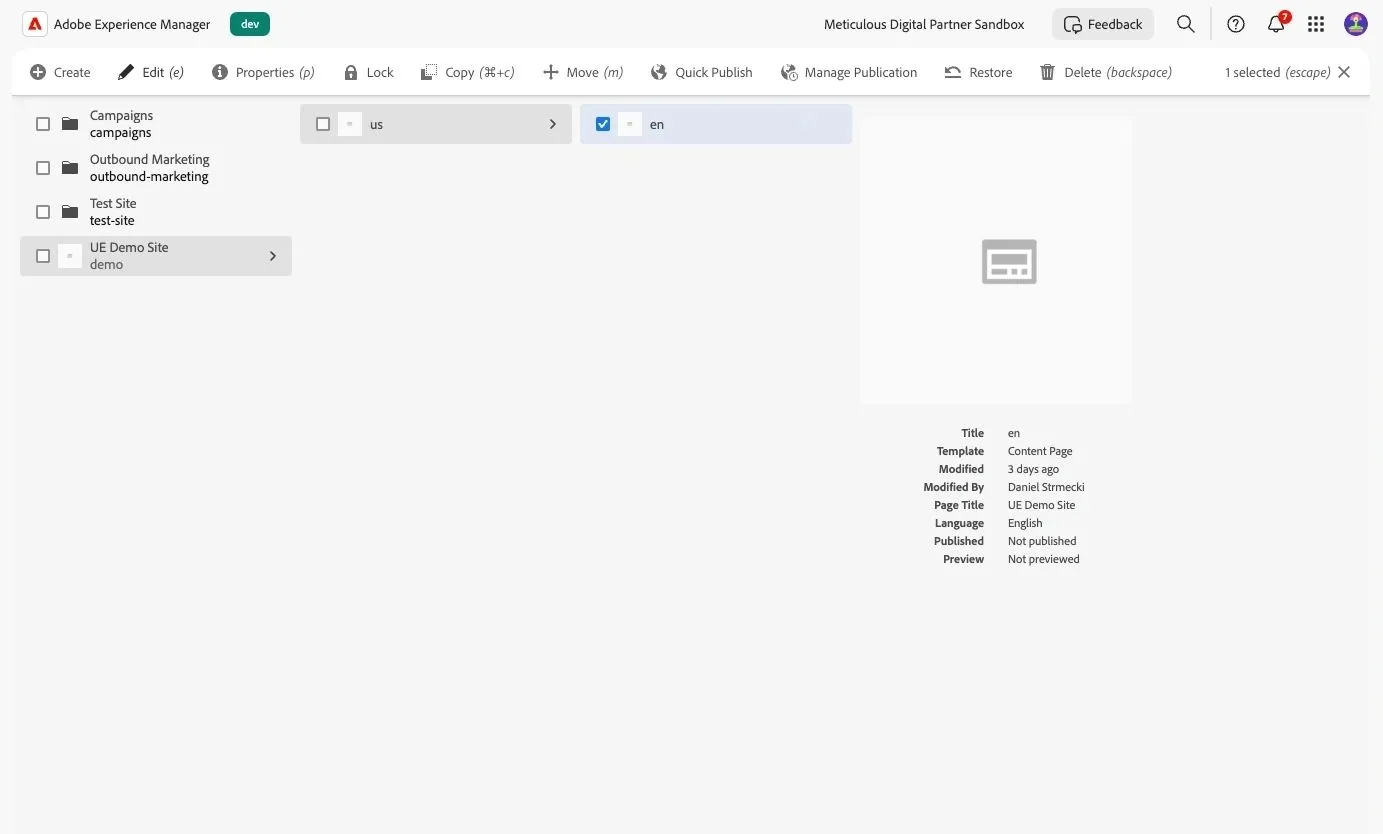
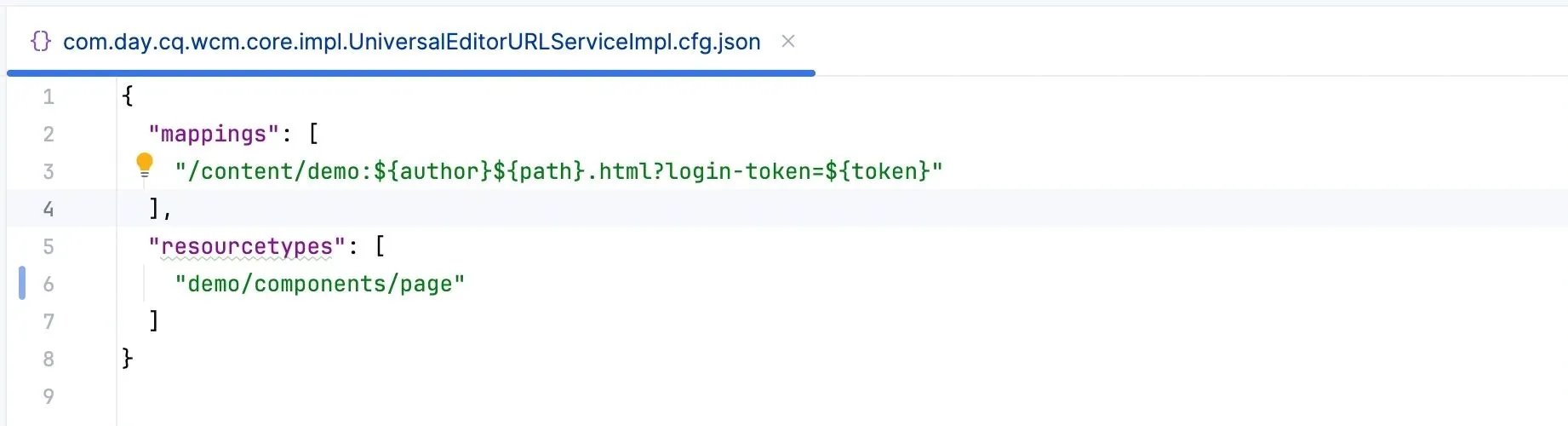
The service com.day.cq.wcm.core.impl.UniversalEditorURLServiceImpl provides the required configuration options to define pages that should be edited with Universal Editor. A set of pages can be defined based on paths or resource types.
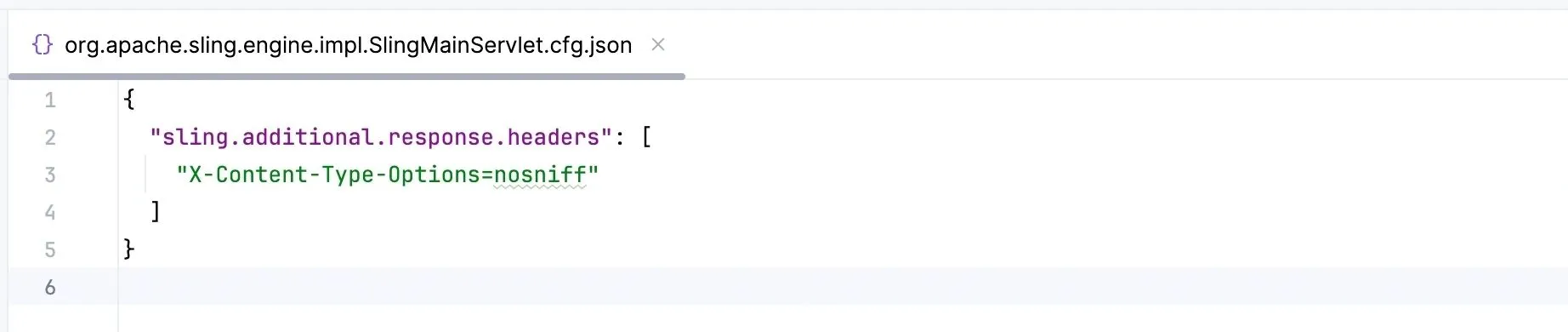
The Universal Editor loads website content in an iframe, but AEM’s default "X-Frame-Options=SAMEORIGIN" setting blocks this. As a result, pages served from a classic AEM backend won’t render in the Universal Editor. To fix this, we need to remove the "X-Frame-Options=SAMEORIGIN" entry from the "Additional Response Headers" option in the org.apache.sling.engine.impl.SlingMainServlet service configuration.
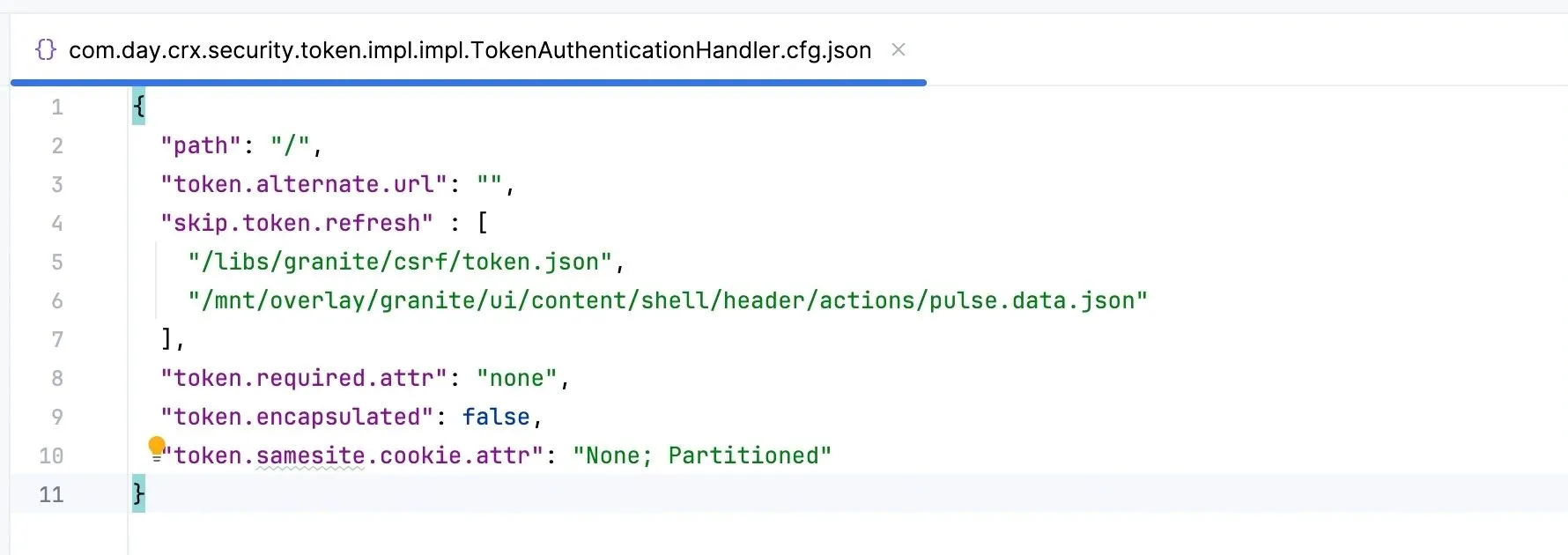
When the Universal Editor loads a page served from an AEM author, it first redirects to the login screen for authentication. However, sign-in fails because the browser blocks the input in the frame. To resolve this, set the "SameSite" attribute of the login-token cookie to "None" in the com.day.crx.security.token.impl.impl.TokenAuthenticationHandler service configuration.
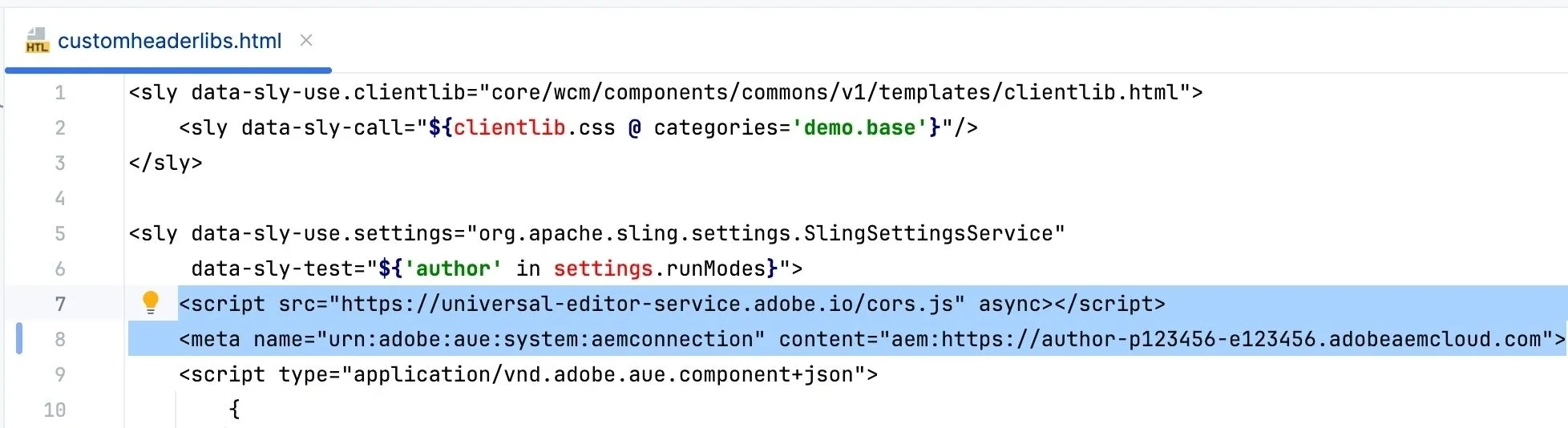
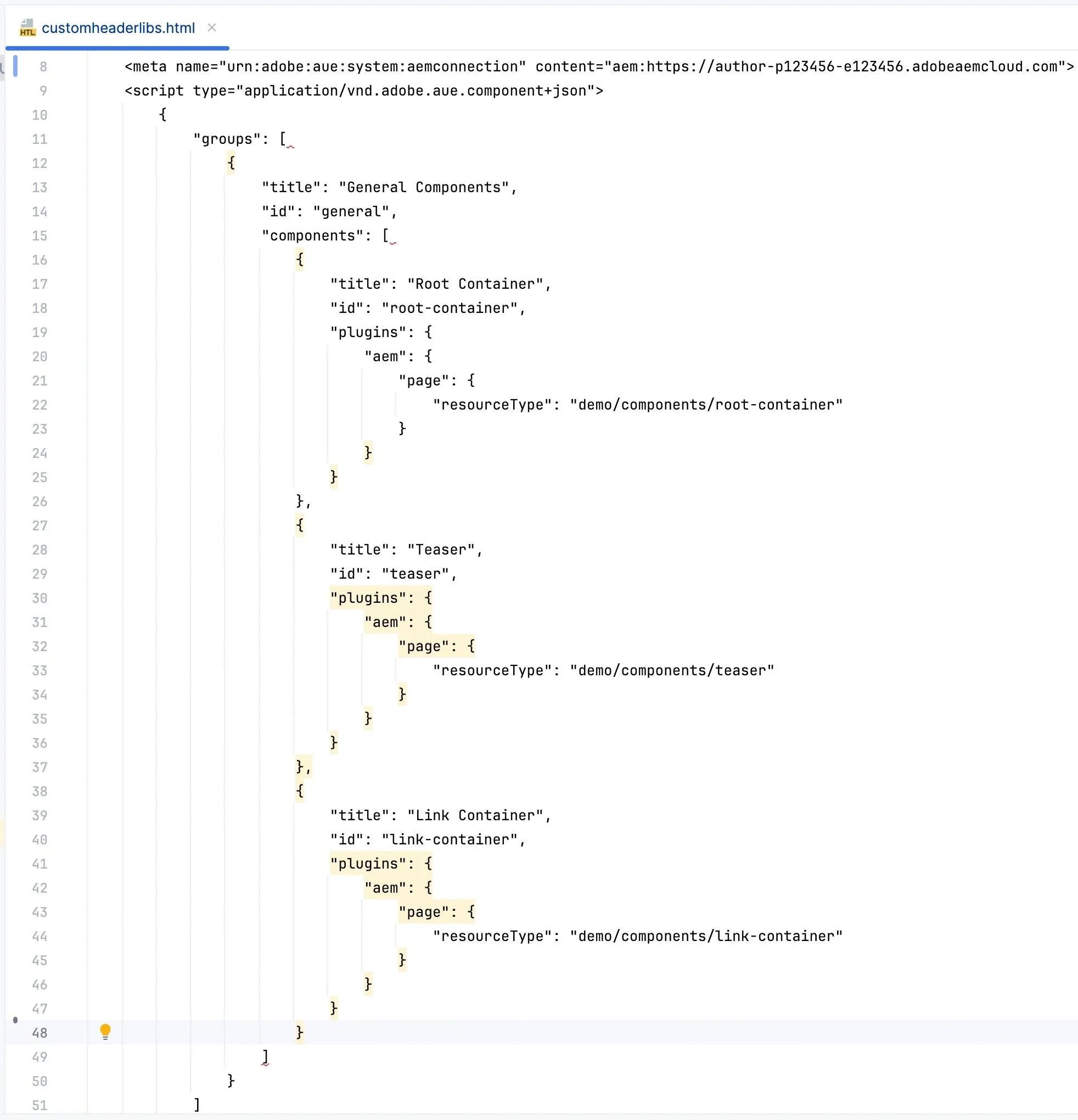
For the Universal Editor to properly load our page served from the AEM author, we'll need to add two more things to our page head. First, a script enabling Universal Editor to connect to the remote frame. This JavaScript library must be loaded in the remote frame. Finally, we'll need to add a meta tag that defines a connection telling Universal Editor where to store the content. In our case, we'll use an AEMaaCS author instance (replace 123456 with your actual program/environment ID).
Mapping Components
Since we aim to store our content in AEMaaCS author instance, we'll need to provide additional configuration so that the Universal Editor knows which components are available and how to map them to AEM resource types. This mapping is provided using a special JSON script with the type application/vnd.adobe.aue.component+json. The component JSON needs to be present in the page head on the author instance. Without it, the Universal Editor won't know how to handle or display our AEM components.
Instrumenting Components
Our classic AEM page now loads successfully in Universal Editor, but we still cannot edit any component on the page. To make a component editable in the Universal Editor, we'll need to add a few key special HTML attributes. Attribute data-aue-resource connects the DOM element to the corresponding AEM resource path. The data-aue-type="component" tells the editor this is a standalone component and not a container. The data-aue-model attribute links the component to a registered client-side model, which we will cover later. Finally, the data-aue-label attribute provides a human-readable label for the component that will be used in the editor interface.
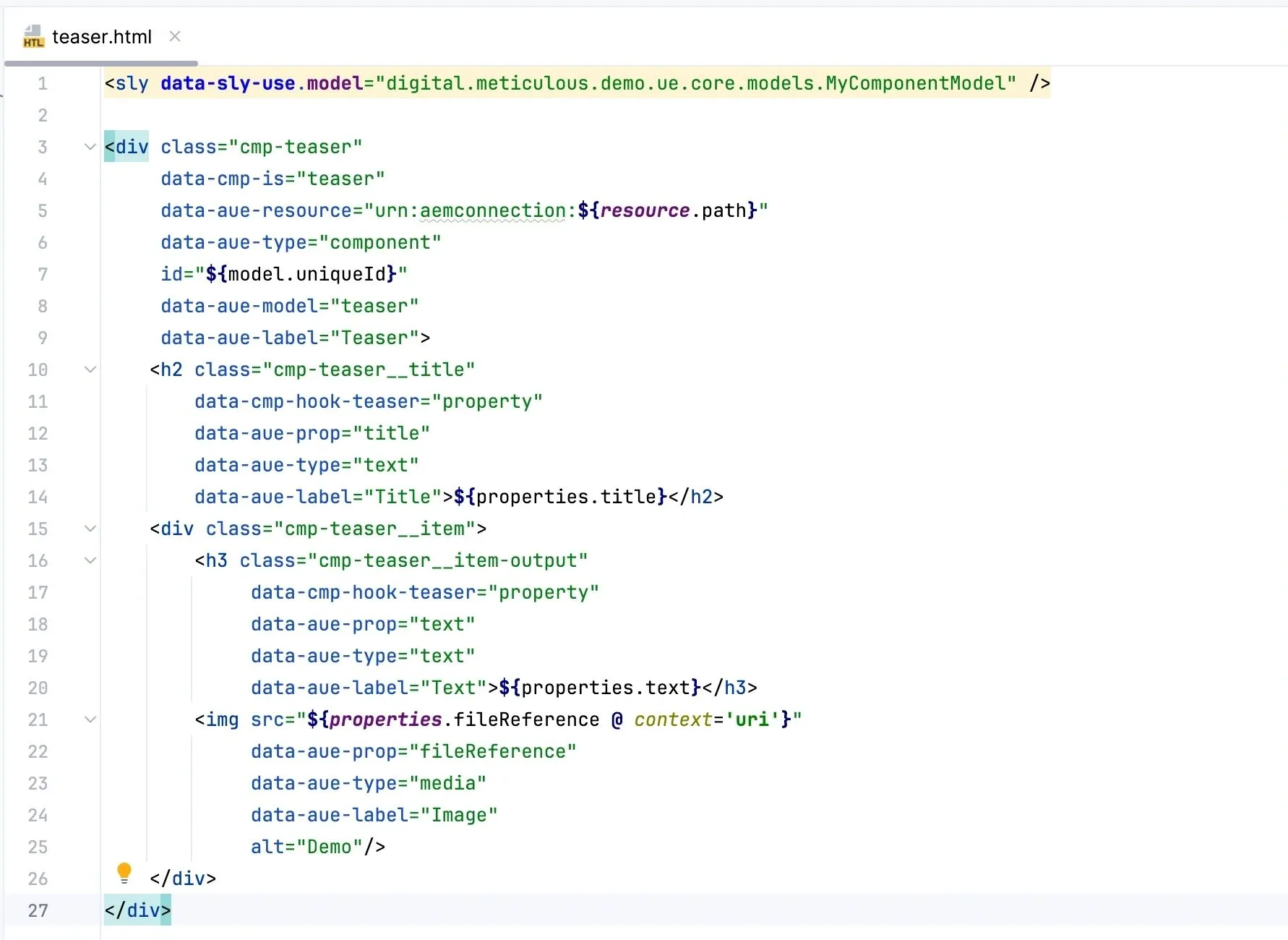
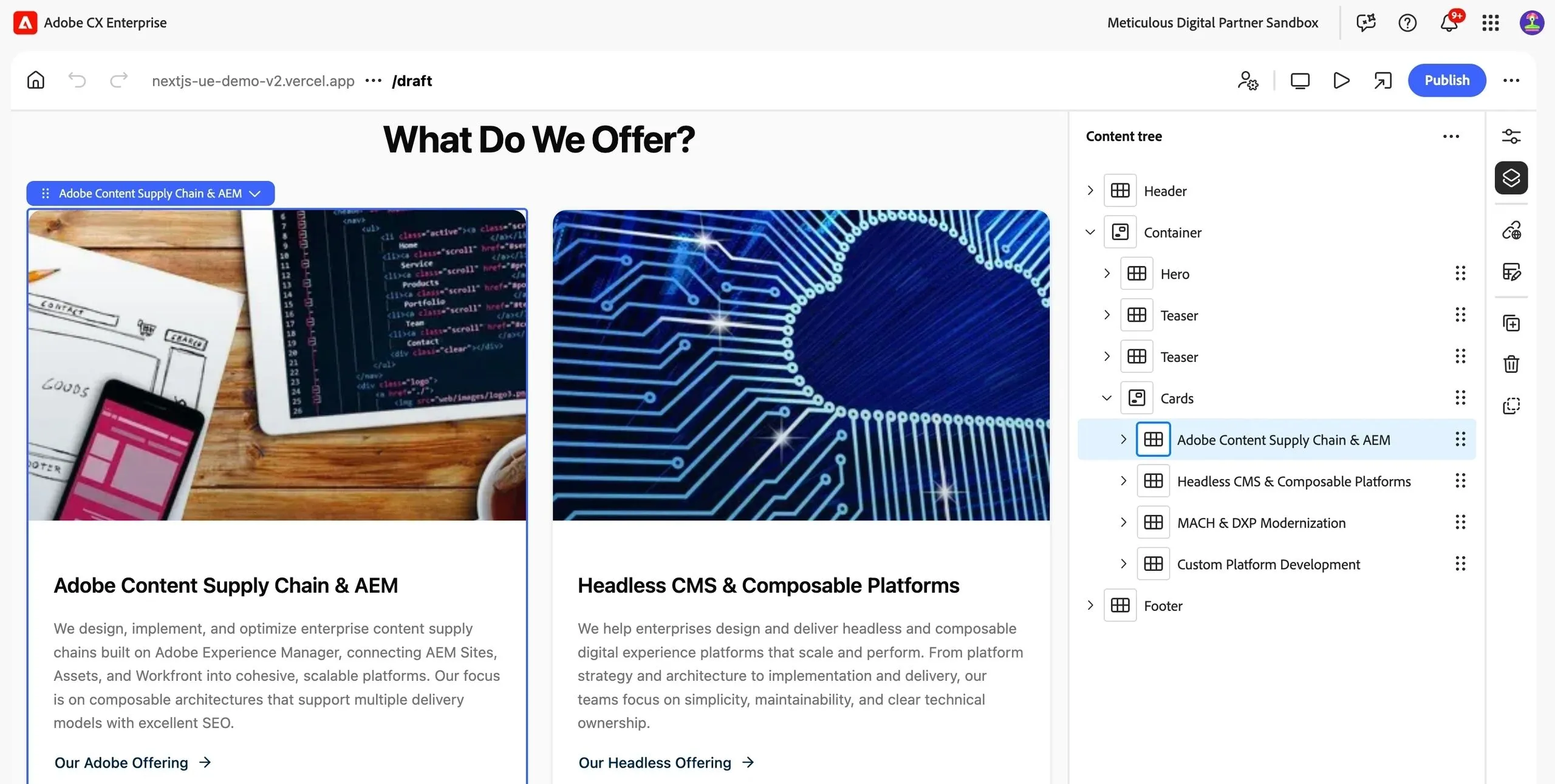
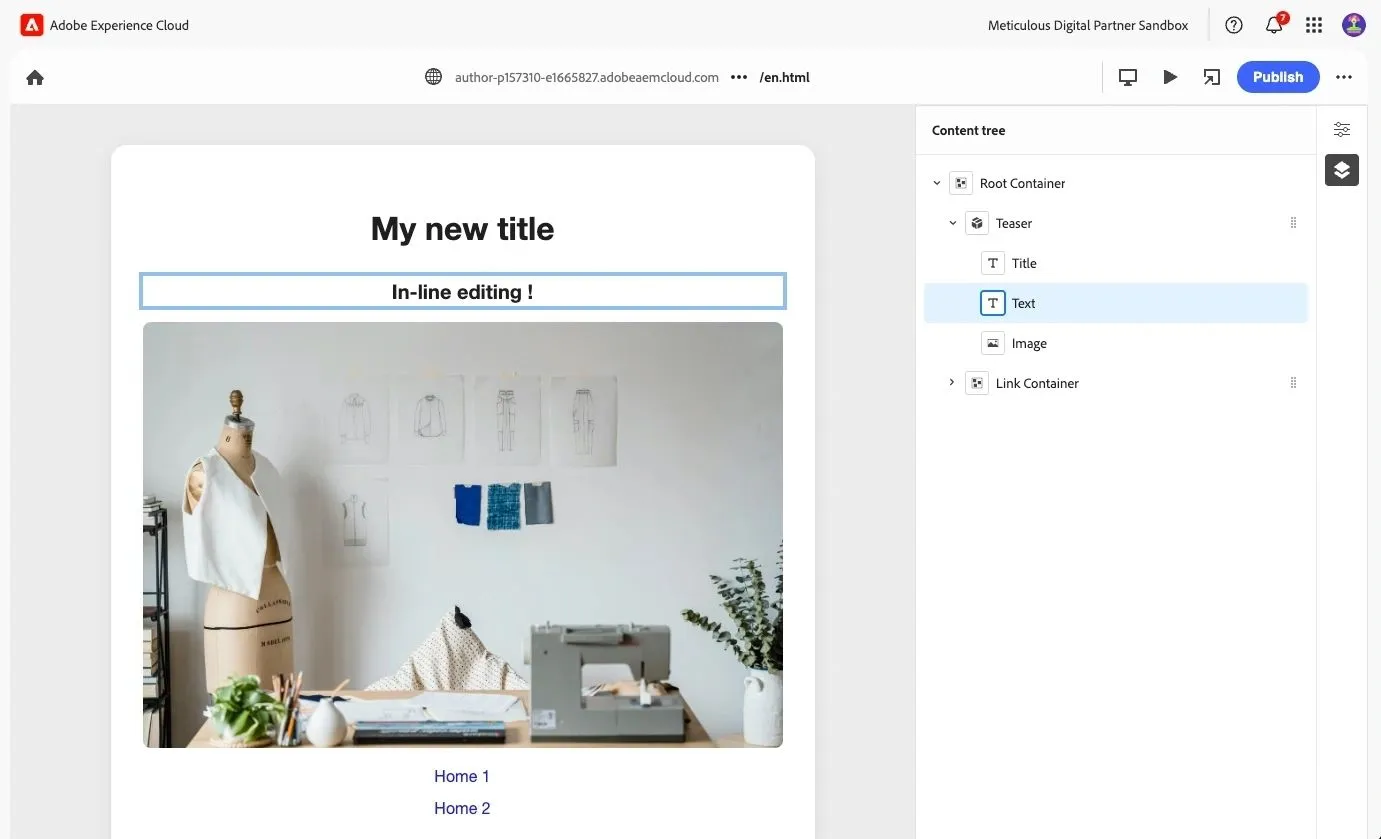
All these attributes work together to enable in-context editing within the Universal Editor. With these attributes in place, we can select different component properties and edit them inline.
Properties Rail
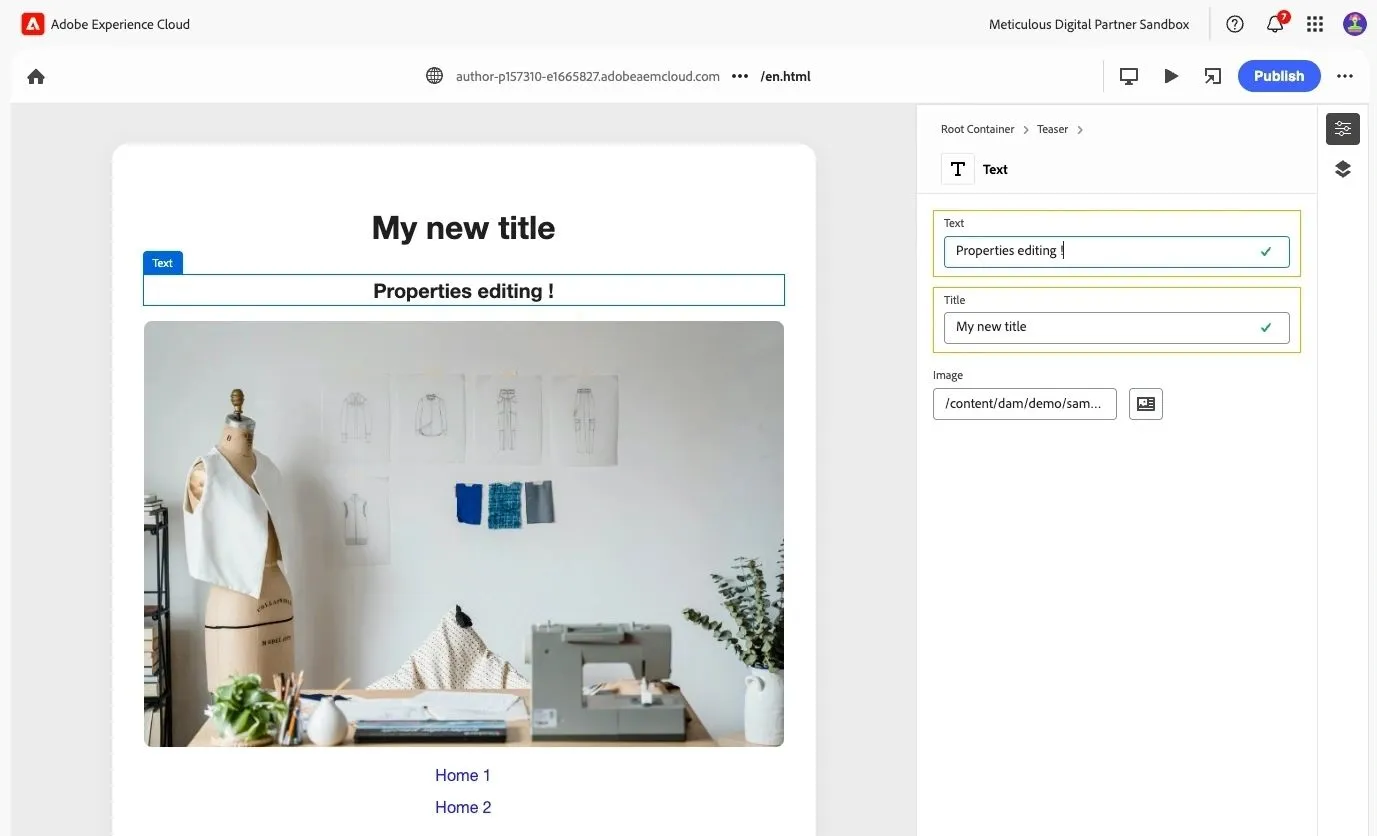
Inline editing is great, but we also want to enable our editors to edit component properties in the Properties Rail (similar to a Dialog in classic Page Editor). To achieve this, we'll need to define a model using a JSON script with the type application/vnd.adobe.aue.model+json. Each model entry is linked to a component via ID and lists its editable fields.
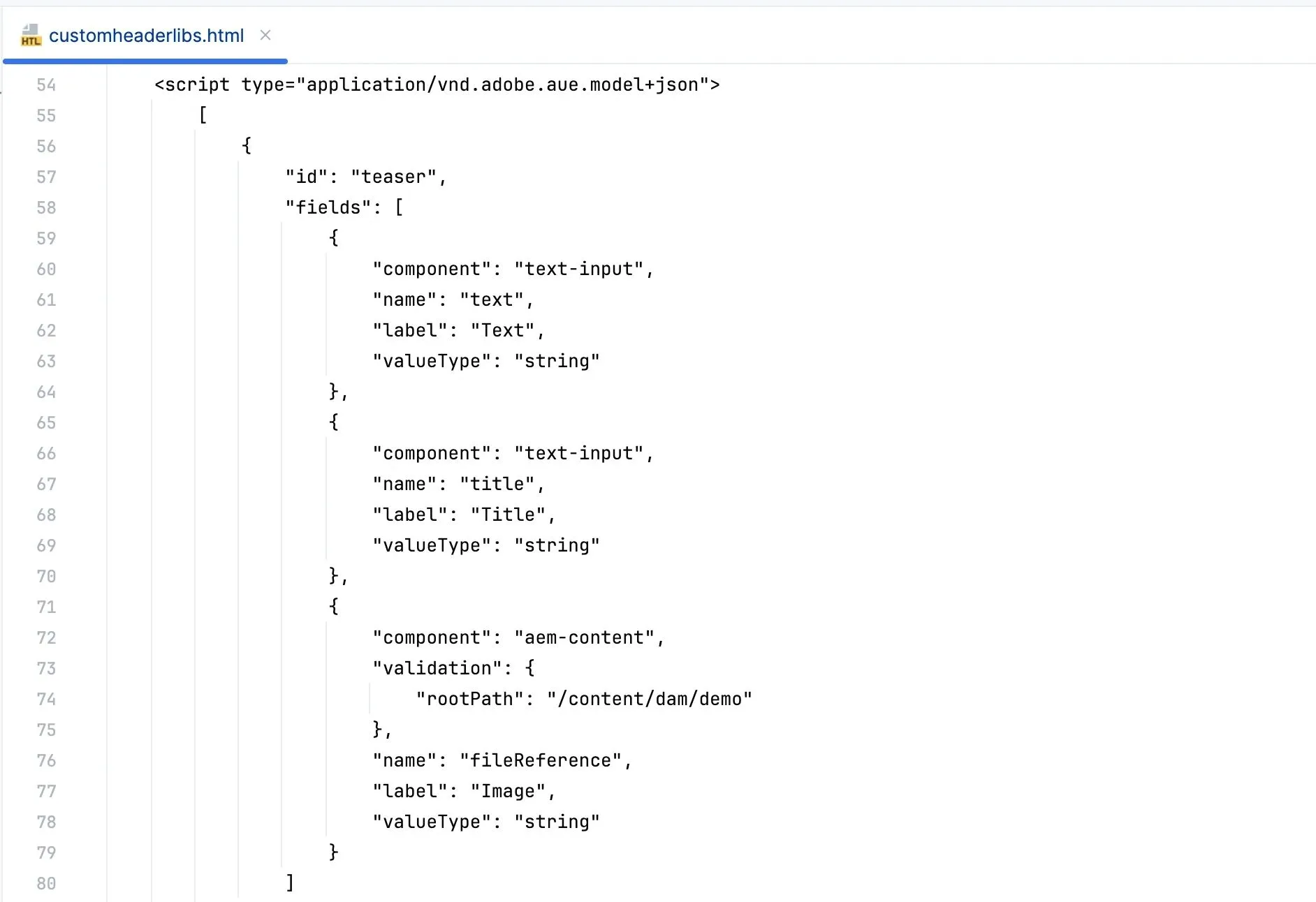
The model JSON tells the Universal Editor what properties are editable and which UI components to use for rendering edit fields. With the model JSON in place, we can now modify the component content directly from the Properties Rail in the right sidebar.
Container Filters
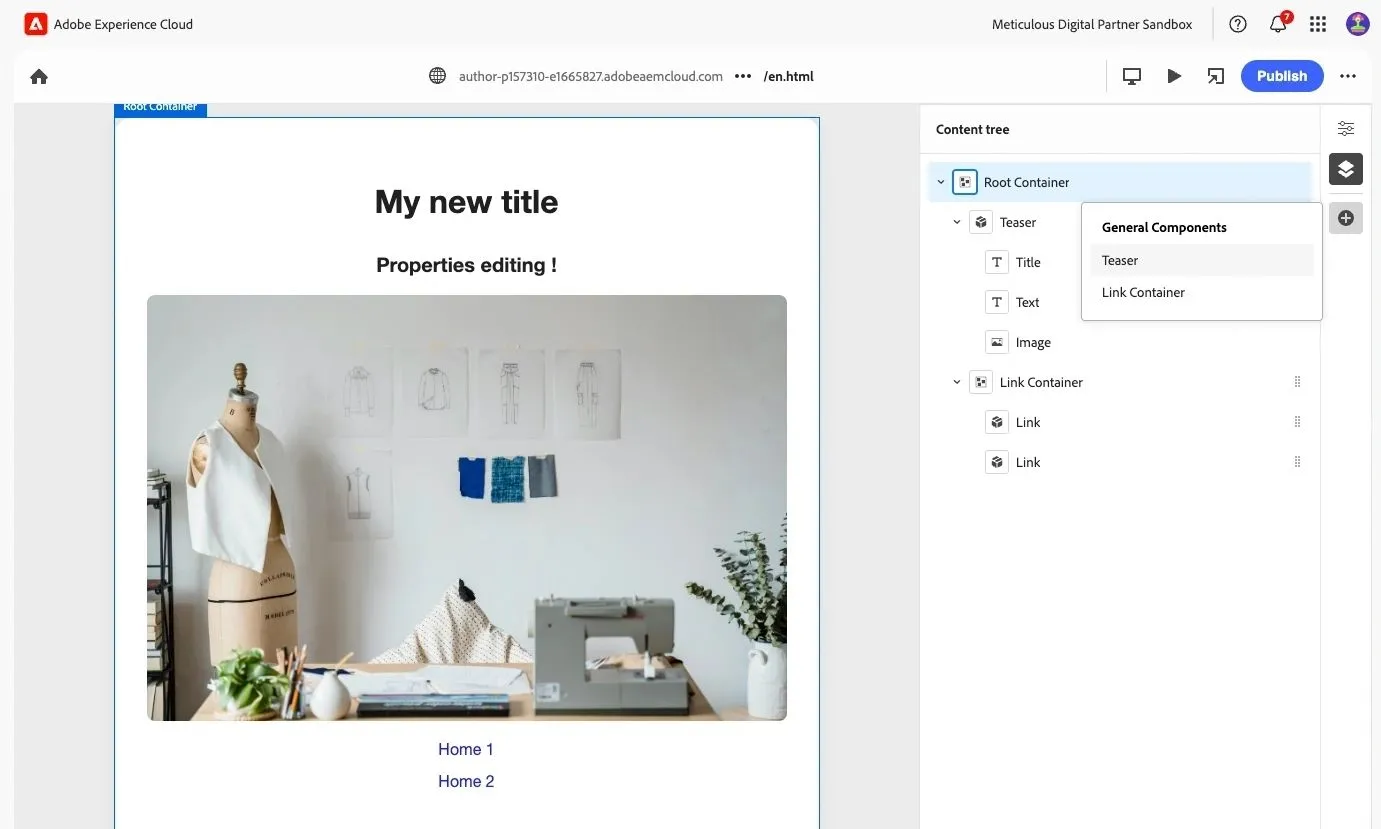
Similar to template policies in AEM, with Universal Editor, we can restrict the allowed components per container component. Container filters are defined using a JSON script with the type application/vnd.adobe.aue.filter+json. Each filter has an ID and lists the IDs of components it allows editors to add. Note that the container component needs to have the attribute data-aue-type="container" and a data-aue-filter attribute matching the value of the filter ID.
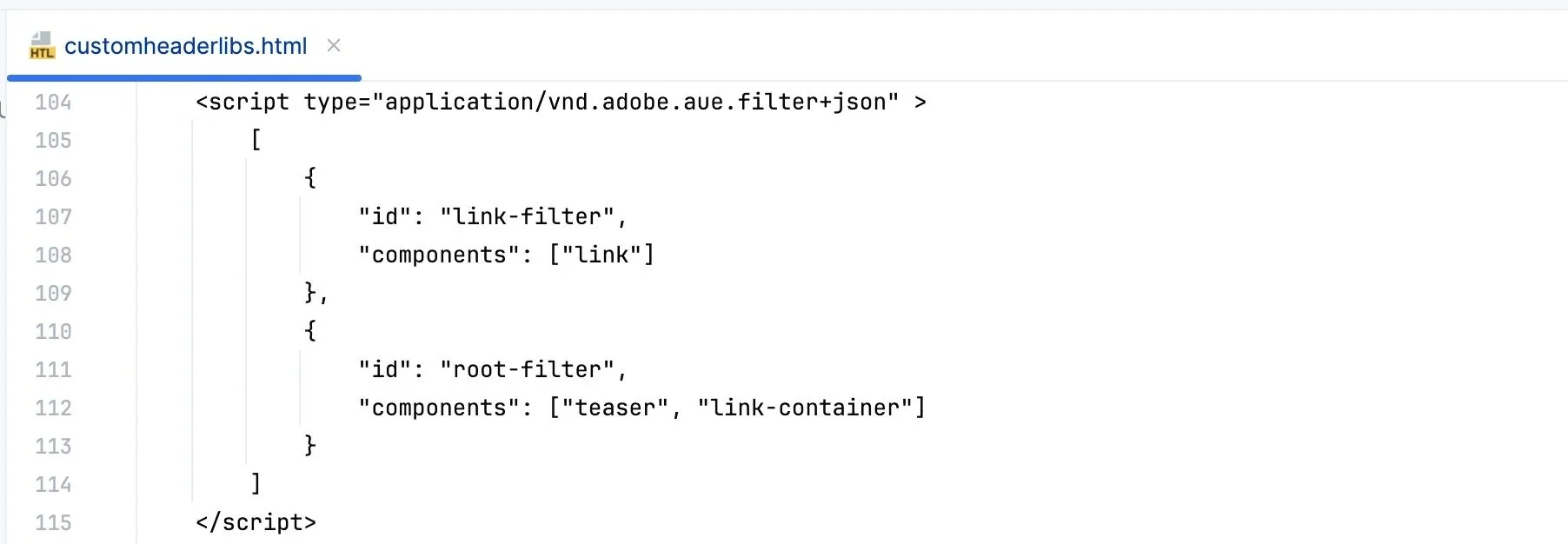
Filters help structure the authoring experience by enforcing valid component hierarchies in the Universal Editor.
Alternative Approaches
At this point, you might be thinking that it's a good idea to start planning AEM component migration from the classic Page Editor to the new Universal Editor. But, there are important alternative approaches to consider first.
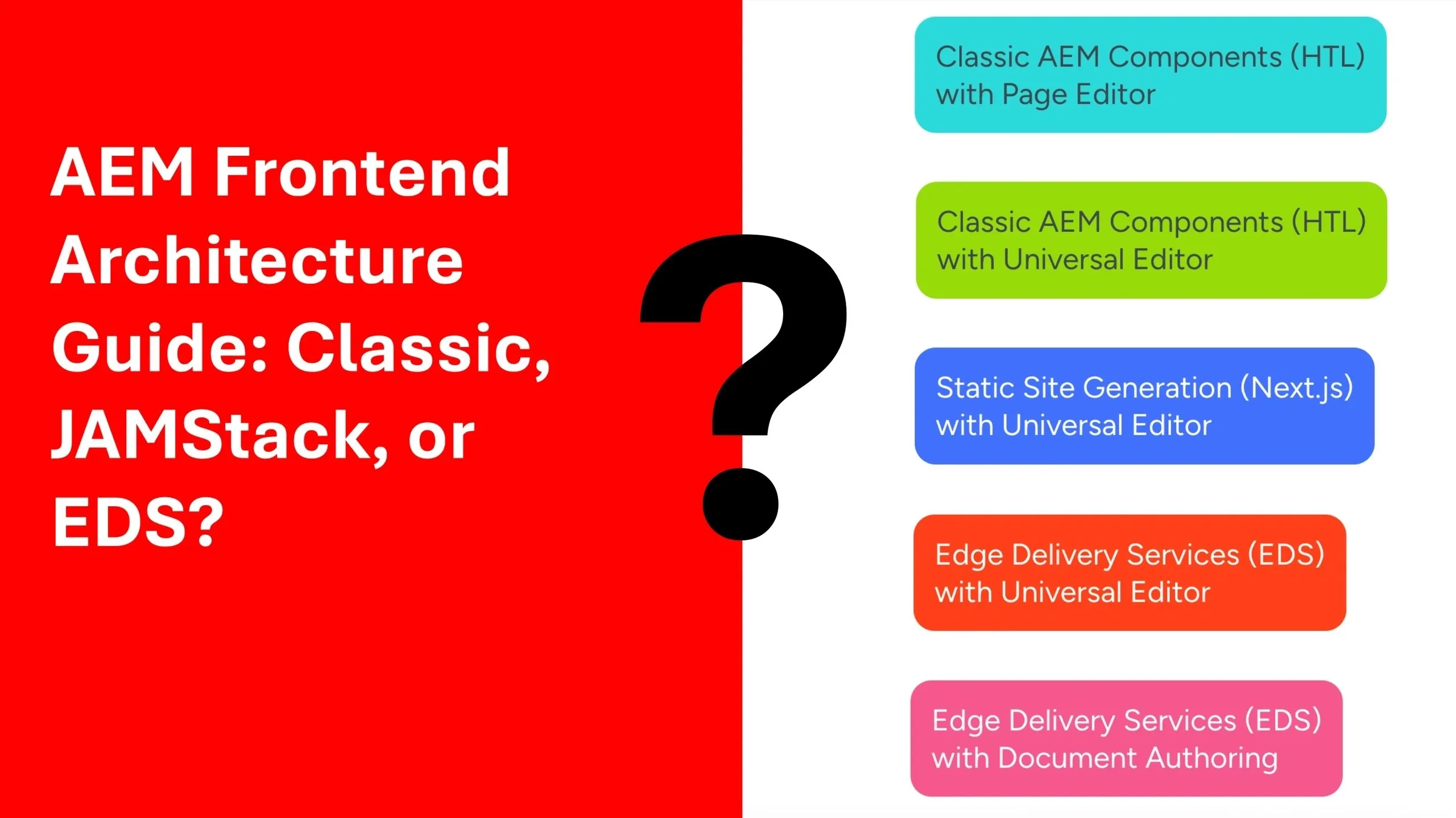
While it is possible to integrate the Universal Editor with classic AEM components, Adobe’s own guidance suggests that this is not its ideal use case. The Universal Editor is purposefully limited in terms of customization to ensure a consistent, metadata-driven authoring experience. It truly shines when paired with modern frontend setups, such as Edge Delivery Services (EDS) or frameworks like Next.js, where its architecture and tooling align with headless and decoupled content delivery.
For teams managing large, legacy AEM implementations, the Page Editor remains the most practical solution in the short term. However, any new development should strongly consider adopting the Universal Editor. Ideally, in conjunction with EDS or Next.js, as this approach is more future-proof and aligns with Adobe’s roadmap. Integrating Universal Editor with classic AEM components makes sense for projects planning major component refactoring, as that milestone can be an ideal point to transition to Universal Editor instead of continuing to invest in the legacy Page Editor.
Conclusion
Adobe has made it clear that the Universal Editor is the future of AEM authoring and will eventually replace the classic Page Editor, although no exact timeline has been announced. This means that all of Adobe’s innovation will be focused on the Universal Editor, leaving the Page Editor with only maintenance updates going forward. For now, both editors will continue to coexist, with the Page Editor remaining the most popular choice for traditional AEM sites built on HTL components and custom dialogs.
Making classic AEM components work with the Universal Editor demonstrates the flexibility and universal nature of Adobe’s new authoring tool. This exercise proves that Universal Editor can be integrated into traditional AEM setups, but it also highlights that Adobe is steering development toward headless and edge-first approaches. By experimenting today, you can prepare your components, content models, and authoring practices for what’s coming next.
If you’re unsure whether to stick with the classic Page Editor, adopt the Universal Editor, or combine it with a modern frontend approach like Edge Delivery Services or Next.js, we can help. Our team specializes in guiding organizations through AEM’s evolving landscape, ensuring you choose the approach that’s best for your current needs and future growth.