Daniel Strmečki
Developing and testing in Adobe Experience Manager (AEM) can be a time-consuming process, especially in large, multi-module projects with multiple teams working in parallel. If every small change requires a full Maven build and deployment, then the development cycle will dramatically slow down as the project grows.
In this article, we’ll explore a few tools and commands that can supercharge your local development workflow. By reducing build times and enabling instant file synchronization, these tools help AEM developers focus on writing code instead of waiting for deployments. Whether you're building components, refining styles, or optimizing backend logic, these techniques can save you minutes, if not hours, every day.
Maven Commands
Profiles
Maven profiles are used to customize and control build configurations based on different environments (e.g., dev, stage, prod) or conditions (e.g., OS, JDK version). Profiles allow developers to enable/disable plugins, dependencies, properties, and configurations dynamically.
Commonly used Maven profiles in AEM projects, are:
- autoInstallAllPackage: Deploys full package to local AEM Author
- autoInstallAllPackagePublish: Deploys full package to local AEM Publish
- adobe-public: Fetches AEM dependencies from Adobe's repo
These profiles are prepared by Adobe, as part of the AEM Archetype, so most projects already have them included and use them.
Full Build
A full Maven build compiles all modules, installs dependencies, runs unit tests, and deploys the package to AEM. It's the most comprehensive and reliable build command but also the slowest.
mvn clean install -PautoInstallAllPackage,adobe-publicLet's break down and explain the full build command:
- clean: Deletes the target/ directory in each module before building.
- install: Compiles code, runs tests, and packages the project, then installs the artifacts into the local repository
- -PautoInstallAllPackage,adobe-public: Fetches AEM dependencies from Adobe's repo and deploys full package to local AEM Author
When does it make sense to use a full build:
- In CI/CD like GitHub Actions, full builds ensure a full and fresh deployment.
- New environment setup or switching between projects.
- Major refactoring when making changes across multiple modules.
- If a dependency is updated, a fresh build ensures everything is aligned.
- If a partial build fails due to missing dependencies, a full build resets everything.
Partial Build
A partial build focuses on building only specific modules, which speeds up the deployment by building and deploying only what has changed or is necessary.
mvn clean install -pl com.mymodule.myproject.core -PautoInstallAllPackage,adobe-publicLet's break down and explain the new commands/flags used in the partial build:
- -pl com.mymodule.myproject.core: Limits the build to the core module and its dependencies.
The -pl stands for "projects list", a flag that specifies which module(s) to build, reducing the time spent on unnecessary or unchanged modules.
When does it make sense to use a partial build:
- In local environments, when we've only done updates to one or a few modules
- We've only made changes to the Java backend code and don't need to deploy other modules
Quick Build
Modern multi-core processors, allow developers to perform parallel builds on multi-module Maven projects to speed up the build and deployment process. We can make the build even faster if we skip unit testing and Adobe's AEM analyse module. This is not recommended in CI/CD setups but can save significant time for local developer testing.
mvn clean install -T 1C -DskipTests -pl !analyse -PautoInstallAllPackage,adobe-publicLet's break down and explain the new commands/flags used in the quick build:
- -T 1C: Enables parallel builds using one core per available CPU.
- -DskipTests: Skips running unit and integration tests.
- -pl !analyse: Excludes the analyse module from the build.
When does it make sense to use a quick build:
- In local environments, for large projects with multiple modules that can be built in parallel.
- For frequent deployments, when focusing on testing functionality locally.
Maven Daemon
Maven Daemon (mvnd) is a high-performance build tool for Maven, designed to speed up builds by running as a background daemon process. It keeps JVM warm, caches dependencies, and leverages parallel execution to improve build times significantly.
We can use Homebrew to install Maven Daemon on Mac. However, be careful which version you use. Note that for Java 11, we need to use version 1.0.2.
brew install mvnd@1Now we can run our quick build command with Maven Daemon. By using the Daemon, we can skip the -T 1C command as it leverages parallel execution by default.
mvnd clean install -DskipTests -pl '!analyse' -PautoInstallAllPackage,adobe-publicWhen does it make sense to use a Maven Daemon build:
- In local environments, for large projects with multiple modules that can be built in parallel.
- To avoid JVM startup time in frequent deployment scenarios when focusing on testing functionality locally.
An example
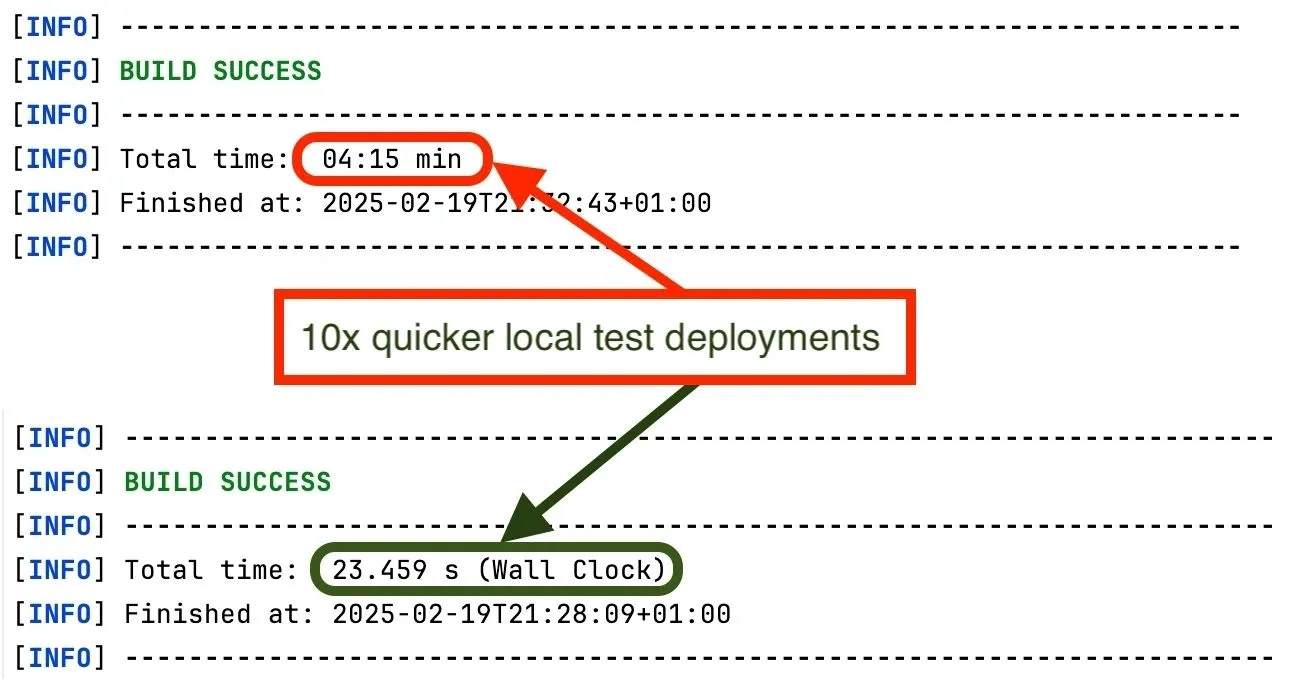
I am working on a quite complex AEMaaCS project that has 15 Maven modules, 2300+ unit tests, and multiple development teams. When testing locally, if I did a full build every time I wanted to test something, I would get more than 4 minutes of coffee time.
However, with the quick/parallel/daemon build option, I can deploy the complete project locally in just 23 seconds. Note that the parallel build will usually take the time required to build and deploy the slowest/largest module.
AEM Sync
AEM Sync is a Node.js utility that automatically syncs the local codebase to an AEM local instance in real time. It watches for changes in specified directories and pushes the modified files to AEM via WebDAV, CRXDE, or the Sling POST Servlet. We can install it with NPM and ensure it gets included in the PATH variable.
npm install -g aemsync
export PATH=$(npm bin -g):$PATH
Now, assuming that we use a default admin password on the local AEM author and the recommended project structure generated by aem-archetype, all we need to do is run the AEM Sync utility in a module.
cd my-module
aemsync
The AEM Sync utility is intended to be used in local environments when working on HTL templates, dialogs, styles, or JavaScript. It syncs updates instantly, allowing us to see changes in the browser without a Maven deployment. However, it cannot sync Java classes or OSGi configurations.
Conclusion
For standard CI/CD environments like GitHub Actions, a standard, full Maven build is still recommended. Here is why:
- Standard Maven is pre-installed in most CI/CD runners.
- Parallel execution that Daemon provides may not work well in restricted resource environments.
- CI/CD environments usually start fresh VMs/containers for each run, so the Daemon does not persist between builds.
- Daemon modifies the way logs are presented, which might make debugging harder.
However, for local development environments, Maven Daemon and the AEM Sync utility are great. As best practice for development and testing use:
- a modern IDE like IntelliJ IDEA for debugging/running unit tests.
- AEM Sync to install and test changes that include XML, HTML, CSS, or JS files.
- Maven Daemon to install and test changes that include Java and OSGi files.
- Full Maven build when a feature is finalized, to ensure the new code and tests integrate well. Ideally, before we open a pull request.
With this setup, developers can increase productivity. The downside is that they only get to drink coffee once a feature is done.