Daniel Strmečki
Content fragments (CF) in AEM allow authors to design, create, and publish page-independent content without visual design and/or layout. Therefore, authors can use them to prepare content that can be reused in multiple locations and channels, which is ideal for headless delivery or reuse across pages. The CF reference AEM core component enables simple referencing and using the CF data on a page, while GraphQL and/or REST APIs enable headless content delivery.
The new CF editor was recently introduced by Adobe to enhance the authoring experience for structured content. It can be accessed from the new CF console and offers a few interesting new features:
- Tree navigation feature with a hierarchical view of the CF structure to allow authors to easily navigate and edit CFs efficiently
- Improved authoring interface with features such as auto-save and breadcrumbs for navigating back in referenced CF structures
- Supports the same CF model fields as the classic editor, allowing for the creation of structured content with predefined data types
- Preview URL link that (if configured) enables authors to preview how the CF data would look on a page
- Toggle button to enable authors to easily switch between the new CF editor and the classic editor
- Enables, but purposefully limits customizations and extension points available
While it is a natural choice for greenfield AEMaaCS projects, switching to the new CF editor may not be a simple task for older projects with many customizations in place. Therefore, in this article, we'll present the benefits of switching to the new CF editor, warn customers about potential customization limitations, and explain how to get around them.
New CF Console
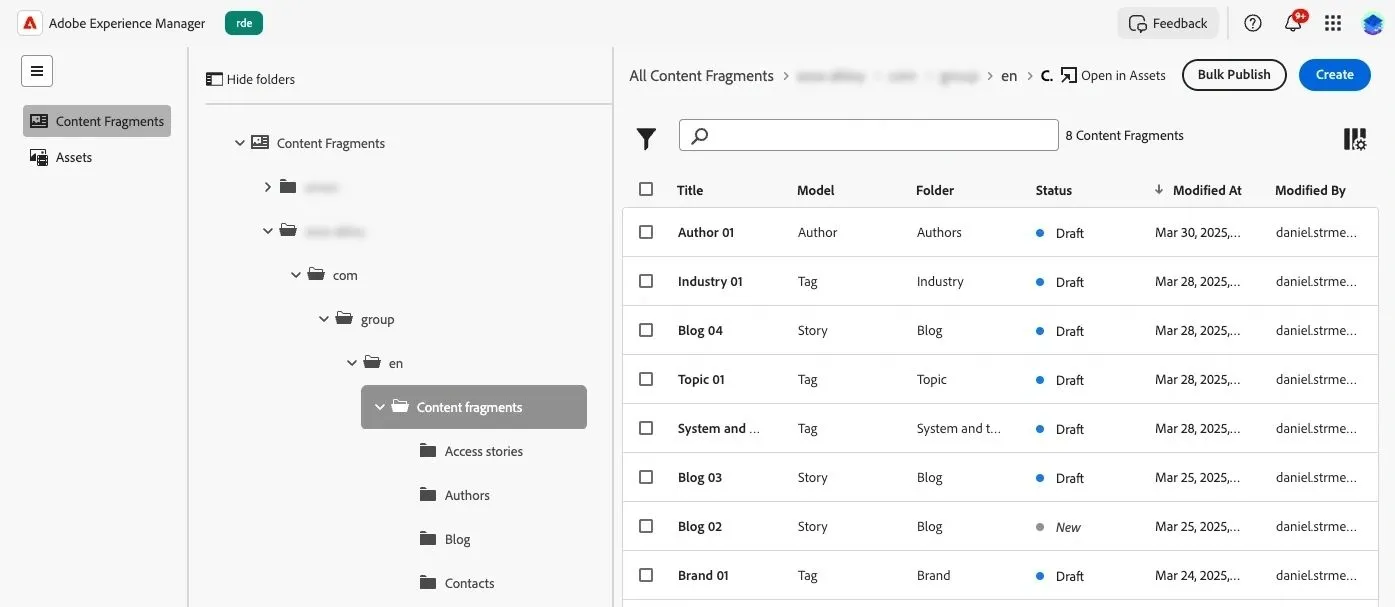
CFs can be accessed from two consoles: the CF console and the assets console. While the assets console has been around forever, the new CF console offers an updated interface designed to improve how authors create, manage, and organize CFs. A more modern, streamlined UI, better filtering, and improved usability enhance the authoring experience. Therefore, authors can now navigate through complex CF structures without mixing them with assets like images, PDFs, and videos.
New CF Editor
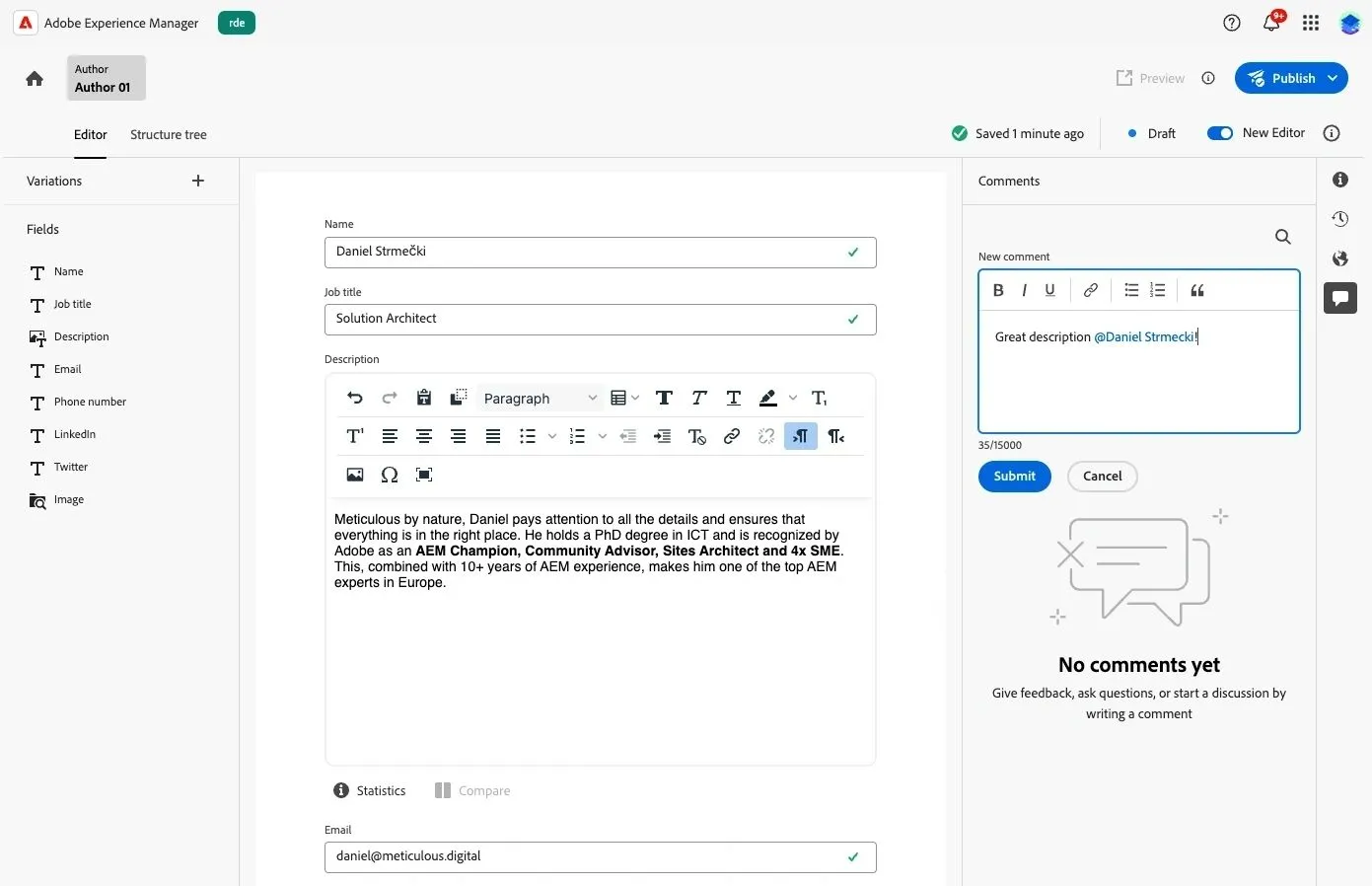
The new CF editor introduces several UI and feature enhancements to improve the authoring experience, making it more intuitive, efficient, and headless-friendly:
- Tabbed navigation for easier switching between main content, variations, and metadata
- Collapsible sections improve readability, allowing authors to focus on specific parts
- Comments section allowing user tagging and notifications
- CFs show inbound and outbound references, helping authors better understand relationships between them
- Auto-save prevents content loss during editing, while improved version history and restore options provide better control over changes
- GraphQL preview, allowing developers to see how content will be delivered
These updates make the new CF editor more powerful, author-friendly, and optimized for omnichannel content delivery.
CF Model Editor
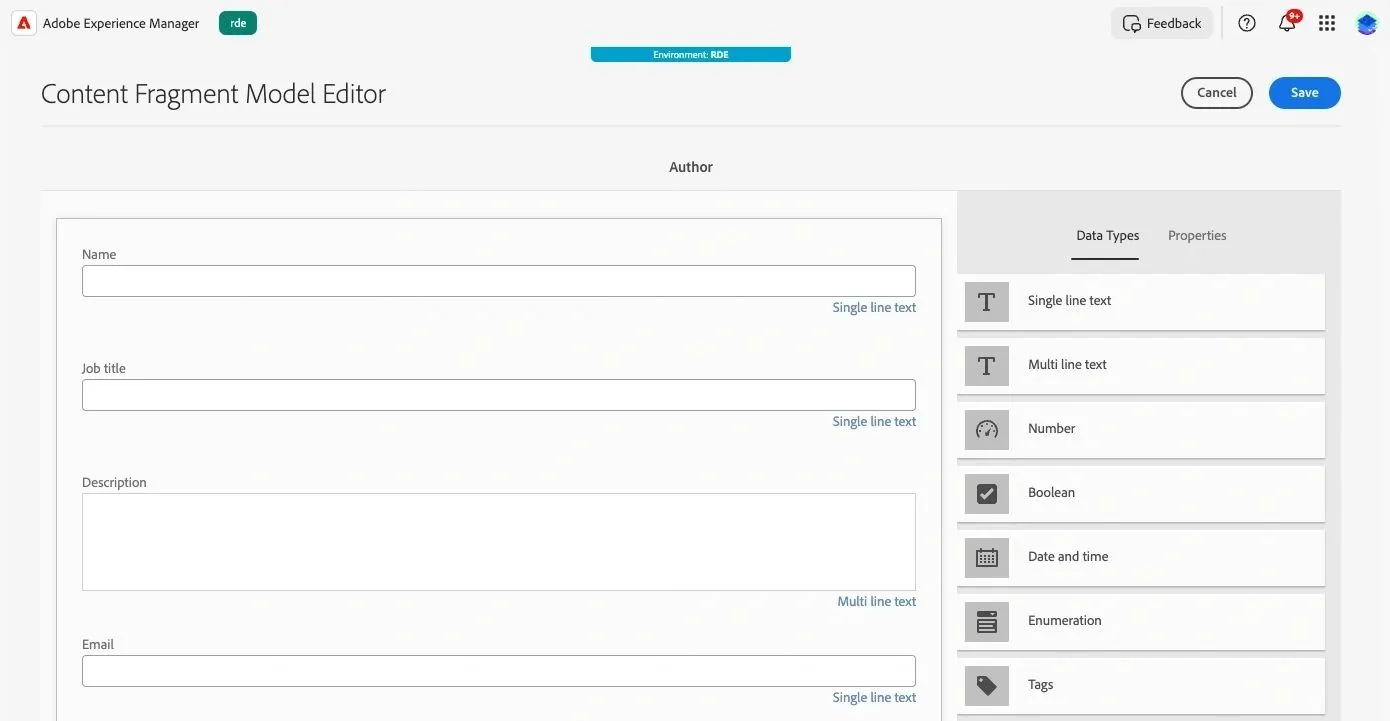
Each CF is based on a CF model, which defines the structure of the resulting fragment. The CF model editor is a visual interface for defining structured content models. It allows developers and site owners to create CF models, which act as blueprints for authors when creating CFs. With the introduction of the new CF editor, the model editor hasn't changed. The new CF editor fully respects existing CF models created using the OOTB fields available.
The rule of thumb is, if the CF model can be opened and saved in the CF model editor, then it will most probably work fine in the new CF editor. Note that this might not be valid for custom validations, so try removing those from the model in case your CF is not rendering properly in the new editor.
Extensions
The new CF editor introduces extension manager and plugin support so developers can enhance the authoring experience with custom plugins deployed to Adobe IO. Unlike with the classic editor, developers cannot simply load custom JavaScript and/or CSS in the editor frame. Instead, Adobe provides specific APIs and extension points that can be used to customize the new CF editor.
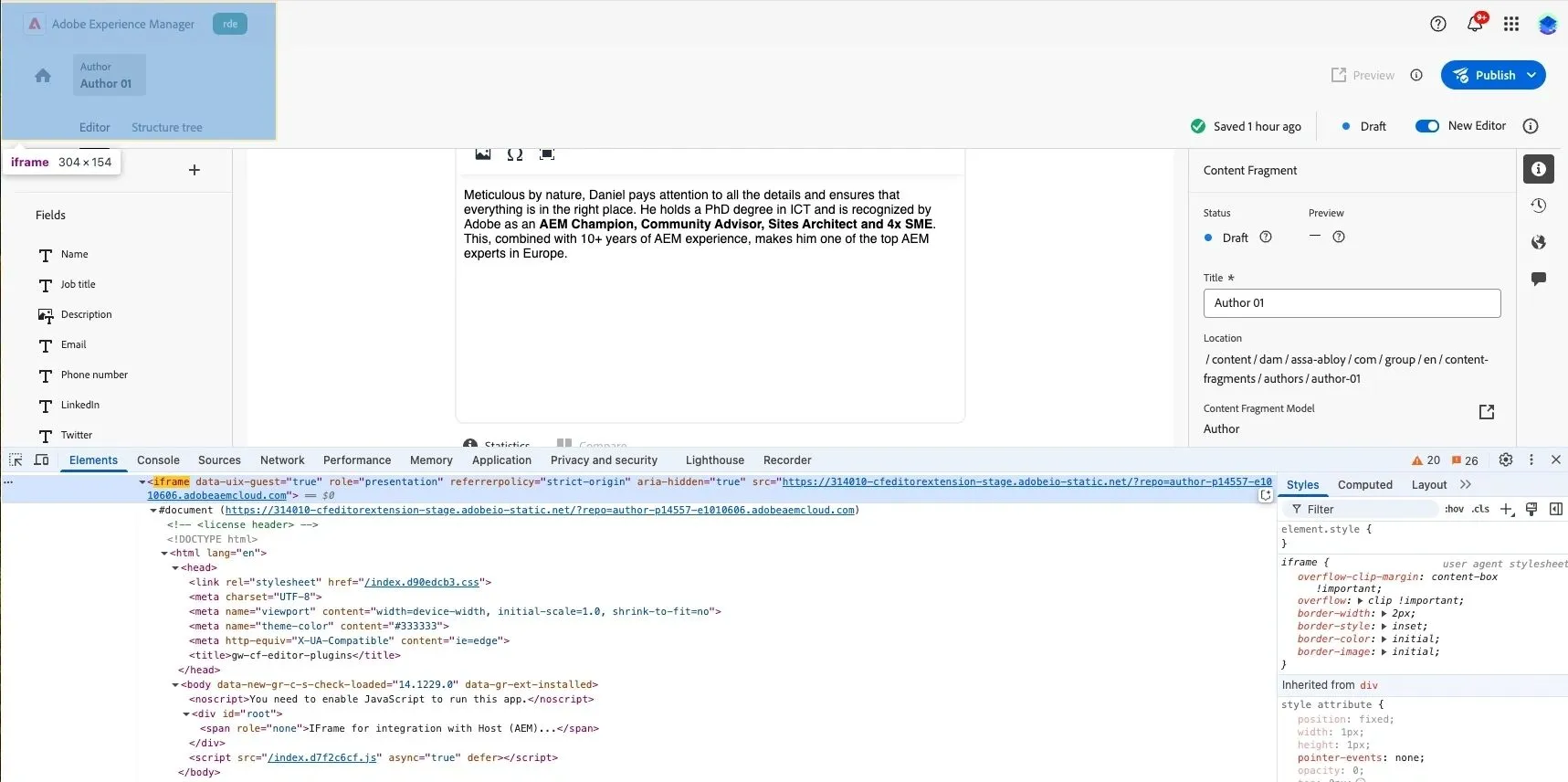
Therefore, customizations are limited to the extension points available. Adobe purposefully limits customizations by loading all plugins in different iframes served from a different domain. This setup results in:
- The browser prevents direct JavaScript interaction between iframes from different domains
- The browser prevents direct access to the DOM between iframes from different domains
- Third-party cookies may be blocked due to browser privacy policies
- Session storage and local storage are domain-scoped
Hence, developers can only make changes to the editor using the Adobe-provided APIs. This makes sense, but unfortunately, those APIs are still quite limited. Adobe teams are working on providing more API support and extension points, so we can expect more customization features available in the future.
Custom Fields
Adding custom fields is thankfully fully supported and documented. In the example shared below, we've replaced an OOTB text field from the CF model with a custom color picker field through a plugin.
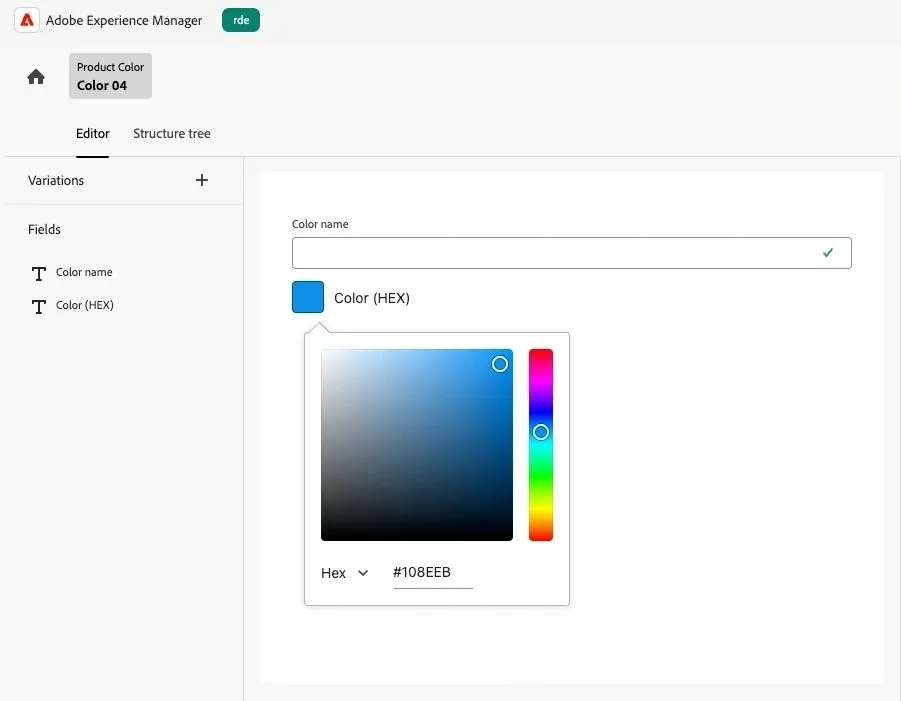
Note that the custom form field is also rendered in an iframe. This could cause issues for input fields with dynamic heights or popups like this one. If we reserve the maximum height using CSS, it will be hard to position any fields after this one. A solution to this problem is to set the iframe height dynamically using JavaScript.
await connection.host.field.setHeight(height);In the code examples below, we'll be using TypeScript, not JavaScript. Even though Adobe plugin code generators use JavaScript, the generated code can easily be converted to TypeScript.
To render a custom form input field, in the ExtensionRegistration.tsx, we first need to define the OOTB field name we want to replace and the URL of the route we'll replace it with.
guestConnection = await register({
          id: extensionId,
          methods: {
            field: {
              getDefinitions: () => {
                return [
                  {
                    fieldNameExp: '^colorHex$',
                    url: '/#/custom-color-picker',
                  },
                ];
              },
            },
          },
        });
Then, in the App.tsx, we just need to connect the previously defined route with our custom element/input field.
<Routes>
    <Route path="custom-color-picker" element={<CustomColorPicker />} />
</Routes>
Finally, in the CustomColorPicker.tsx, we can now define our custom form input field. Since we are using React, we can easily leverage components from Adobe Spectrum, a React implementation of Adobe's design system.
import { ColorPicker, ColorEditor } from "@adobe/react-spectrum";
...
return (
 <Provider theme={lightTheme}>
   <View width="100%" height="350px">
     <ColorPicker
       label={model.fieldLabel}
       value={value}
       onChange={onValueChange}>
       <ColorEditor hideAlphaChannel={true} />
     </ColorPicker>
   </View>
 </Provider>
  );
Nested Multifield
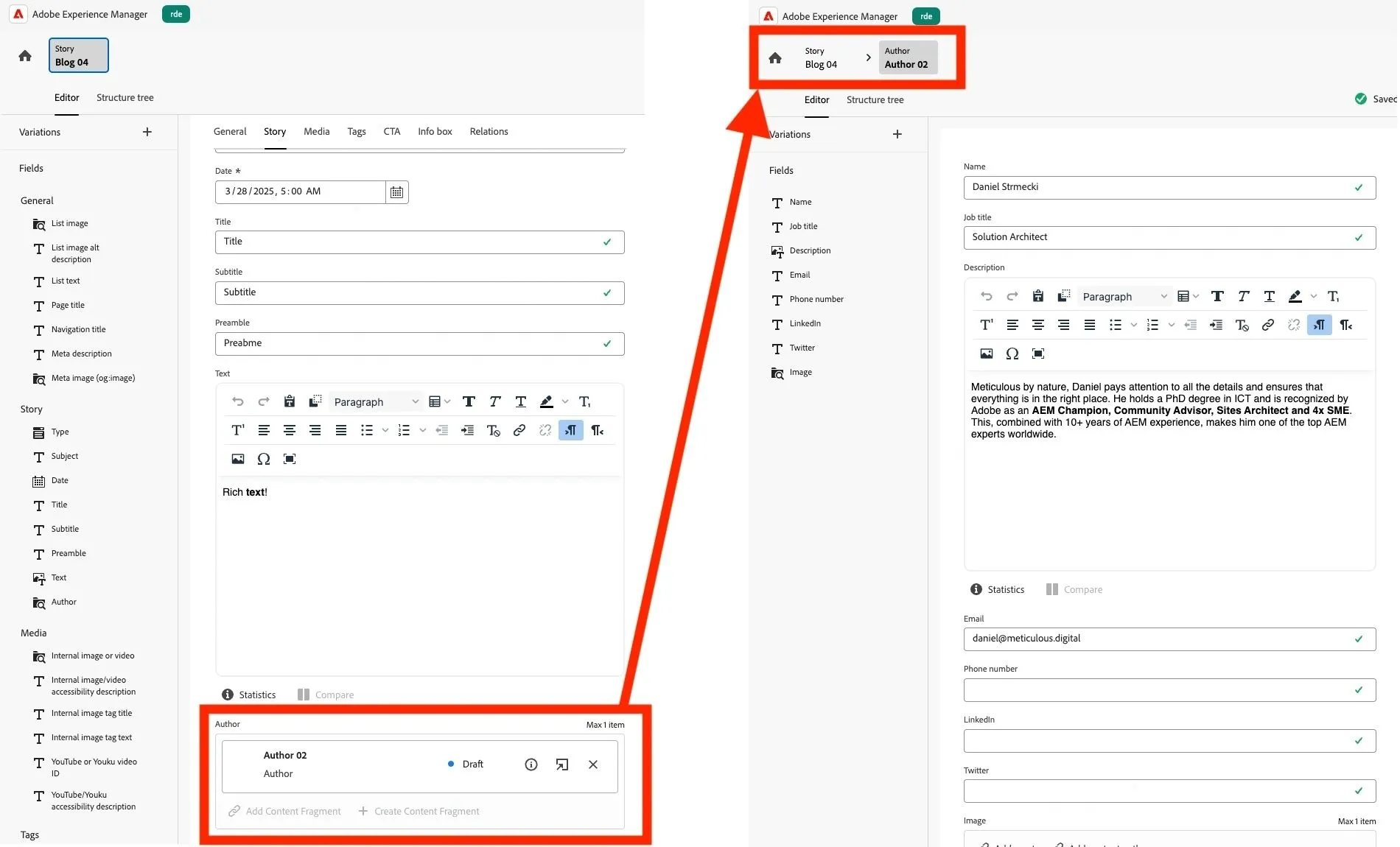
I know many customers and developers migrating to the new CF editor will immediately think about creating a custom, complex multifield. However, I suggest thinking twice and starting to create small CFs that can be referenced instead. In the new CF editor, authors can easily reference other CFs, edit them, and go back to the original CF using breadcrumbs.
In many cases, this OOTB solution removes the need for a custom, complex multifield. Keep in mind that heavy customizations often cause maintainability issues years later. Creating custom multifields that store data in JSON format is possible, and might be a valid solution in case we aim to store only simple text data. However, when storing references (to images, pages, or other CFs) in JSON format, AEM won't recognize them as content references. This could cause many problems for authors using features such as copy, move, publication, and multi-site management operations, where they expect references to be automatically published or updated.
Conclusion
The new CF console and CF editor are the future for all AEMaaCS customers and definitely bring improvements in terms of authoring experience. As the new CF editor is already the default one, it will probably also be the only one to include future innovations developed by Adobe. The migration effort required to move to the new CF editor will depend fully on the number of customizations created for the classic editor. This is a good opportunity to think about removing unnecessary customizations and replacing them with OOTB features. Then again, some customizations will be needed, while others might not be possible at all in the new CF editor. As Adobe is further developing the extension points and APIs, some customers might decide to wait a bit with the migration until more customization options are available.